





 Make us preferred on Google
Keeping track of your crypto transactions can be challenging: you may have accounts across various L1s, in different liquidity pools, or throughout multiple exchanges. With the possibility for so many accounts and positions, consolidating your investments to find out your overall return is difficult. Additionally, crypto tax regulation can vary across countries, adding to the complexity of determining your taxable income.
In today’s article, we’ll cover the basics of crypto taxes and show you how to calculate them in Excel using the CoinGecko API. You can use the official CoinGecko Excel add-in for a simpler setup, or use VBA if you want more control over how the template works.
Disclaimer: Crypto tax rules vary by country and can change over time. This guide and template are for informational purposes only and are not tax advice. Consult a qualified tax professional for guidance on your specific situation.

Crypto Taxes: How Much Tax Will I Pay on Crypto?
Crypto tax liability generally falls into two main categories:
-
Ordinary Income: If you receive cryptocurrency through your job, staking, mining, or airdrops, the Fair Market Value (FMV) of the crypto when received is generally treated as ordinary income. In the U.S., this is taxed at your regular federal income tax rate, ranging from 10% to 37% depending on your tax bracket.
-
Capital Gains/Losses: You may owe capital gains tax when you dispose of crypto, such as by selling it for fiat, swapping it for another cryptocurrency, or using it to buy goods or services. The gain or loss is generally based on the difference between your Adjusted Cost Basis and the value of the crypto when you dispose of it. For example, if you bought 1 ETH for $1,500 and later used it to buy a $2,000 laptop, you would generally have a $500 capital gain.
In the U.S., the tax rate can also depend on how long you held the crypto. Assets held for more than one year may qualify for long-term capital gains rates of 0% to 20%, while assets held for one year or less are generally taxed at ordinary income rates of 10% to 37%.
What Is the Difference Between Short-Term and Long-Term Crypto Taxes?
The main difference is how your crypto gains are taxed. In the U.S., the tax rate generally depends on how long you held the asset:
- Short-Term Gains: Crypto held for one year or less is generally taxed at ordinary income tax rates, ranging from 10% to 37% depending on your tax bracket.
- Long-Term Gains: Crypto held for more than one year may qualify for lower long-term capital gains tax rates of 0% to 20%, depending on your taxable income.
How to Calculate your Capital Gains and Losses
To calculate your capital gains, you would first need to determine your cost basis. Put simply, this is the original price you paid for an asset. Your cost basis is necessary to calculate the profit you make from conducting any transaction: selling, swapping, or being airdropped crypto assets, for example, can all fall within taxable transactions.
For example, if you bought ETH for $2,000 and paid 0.25% in gas fees ($5), your cost basis would be $2,005. If you later sell this ETH for $3,000 and pay a 0.05% gas fee ($15), your net sale proceeds would be $2,985.
To calculate your capital gain or loss, subtract your cost basis from your net sale proceeds. In this example, your capital gain would be $2,985 − $2,005 = $980. You made a capital gain of $980, which may be subject to Capital Gains Tax.
There are a number of different cost basis methods used in accounting. Depending on the country in which you pay taxes you may even be entitled to select your chosen method, as in the United States. Provided you can identify the specific asset you are disposing of, the IRS states you can select your chosen cost basis method, such as HIFO, FIFO, or LIFO. Whatever method you choose, you must use it consistently when calculating your gains or losses. If you are uncertain as to which cost basis method you can use, contact the IRS to confirm.
If we return to our earlier example, we can see how our capital gains or losses vary depending on the chosen method. Lets assume our transaction history includes 1 ETH bought in 2021 for $2100, 1 ETH bought later in 2021 for $4100, and 1 ETH bought in 2023 for $1800, and 1 ETH sold in 2023 for $2200. If we went by the First in, First out (FIFO) method our capital gains would be $2200-2100 = $100. If we used Last in, First out (LIFO) our capital gains would be $2200-$1800 = $400. Lastly, if we use Highest in, First out (HIFO) our capital losses would be $2200-$4100 = -$1900. Every transaction fee involved in moving, swapping, or sending out cryptocurrency can also be added to our cost basis, lowering the capital gains.
FIFO is the most common accounting method used by investors to calculate their capital gains. If the price of crypto has dropped since you first bought it, this method can lower your capital gains tax. Additionally, as FIFO disposes of your longest-held cryptocurrency, depending on your situation, you can take advantage of a lower long-term capital gains tax.
Disclaimer: Ensure the template is compatible with the tax laws in each country where you have a tax obligation. This may require some customization or modification of the template. Our template has been made specifically to cater to US tax laws.
How to Calculate Your Adjusted Cost Basis (ACB)
The adjusted cost basis is the consolidation of the cost of any asset and any related fees. This method is applicable to the Canada Revenue Agency. You can either use the fair market value (FMV) of the cryptocurrency at the end of the year, or when you acquired it, depending on which is lower. Additionally, they require the following to be recorded:
- Date and time of each transaction
- Value of the crypto-asset in CAD
- Number of units and type of cryptocurrency
- The addresses associated with each digital wallet used
- The beginning and end wallet balance for each crypto-asset for each year
If you hold an array of assets, you can choose to use the FMV for your entire portfolio at the end of the year. Alternatively, you could choose the exchange rate shown by the same exchange broker you used or an average of their high/low/open/close across a number of brokers. Preferably, you could use an aggregated price across all exchanges for your cryptocurrencies – as offered by CoinGecko API.
Prerequisites
To build our Tax Calculator, we will use Microsoft Excel 365 and the Visual Basic for Applications (VBA) language.
Ensure you also have access to the CoinGecko Demo API. Scroll down to the “Create Demo Account” button found underneath the price options on the right hand side of the screen. Once you've created your account, you'll be directed to the Developer Dashboard where you can generate your API key.
We will be accessing the /coins/{id}/history endpoint to obtain CoinGecko’s price for a certain cryptocurrency on a specific date. This provides an aggregated price for your selected cryptocurrency on the date it was involved in a transaction. As we will be using VBA for this spreadsheet, ensure you save the document as an Excel macro-enabled workbook (xlsm).
Looking for a simpler setup? The template also supports the official CoinGecko Excel add-in, which fetches live and historical prices directly into your spreadsheet using =CG. formulas. You’ll need Excel 2019 or later on Windows or Mac and a CoinGecko API key. The free Demo key is enough to get started, while Pro plans offer higher rate limits for more frequent refreshes.
How to Use the Crypto Portfolio Tracker Excel Template
Option A: Using the CoinGecko Excel add-in
First, connect the template to the CoinGecko Excel add-in to enable historical price data within the spreadsheet. To get started, install the add-in from the Office Add-ins store, then configure your API Key by following the setup guide. The add-in detects your plan tier automatically from your API key, so there is no separate subscription-level setting to configure.
Once configured, the =CG.HISTORY() formulas across the template will automatically fetch the required historical price data.
Refreshing Crypto Price Data
The template uses =CG. formulas to fetch crypto price data, including historical prices with =CG.HISTORY(). For example, =CG.HISTORY("ethereum", "2023-06-30") retrieves Ethereum's historical price on June 30, 2023. For the latest price data, you can use formulas such as =CG.PRICE("bitcoin").
If you need to refresh the data, open the CoinGecko task pane and click “Refresh All Data.” Excel may cache results for a short period, so refreshing manually can help you retrieve the latest available data. More frequent refreshes consume API credits, so consider a paid API plan if you need higher usage limits.
For tax calculations, most values in the template are based on historical price data retrieved by these formulas. Once the relevant daily closing price has been retrieved, the calculated tax values do not need to be refreshed unless you update the underlying transaction data or price inputs.
Once the add-in status shows Online, you can start customizing the template by adding the tokens you want to track in the following section.

How to Add Specific Coins
To calculate historical values, the template needs the unique CoinGecko API ID for each asset. You can find the API ID on the individual coin’s page on the CoinGecko website. Once you have the API ID, enter it in cell B16 on the Tax Calculator sheet. The template will then use the API ID to fetch the relevant historical price data for your calculations.


Logging Your Cryptocurrency Transactions in the Tax Calculator Sheet
Once the add-in and CoinGecko API ID are set up, you can start logging your buy and sell transactions in the Purchased Assets and Sold Assets tables. These tables form the basis for calculating your cost basis and capital gains or losses using the FIFO method.

For a more efficient setup, import your transaction history from your exchange or wallet:
- Export Your Transaction History: Most crypto exchanges allow you to download your transaction history as a CSV file. For on-chain transactions, you can use a block explorer such as Etherscan to view your wallet activity and download the available transaction data.
- Filter and Prepare Your Data: Open the exported CSV file and prepare the details required by the template, including the transaction date and time, asset name, quantity purchased or sold, transaction fees (if applicable), and transaction type (buy or sell).
Analyzing Your Crypto Tax Summary
Once you have logged your transaction history, the template automatically processes the data. The CoinGecko add-in retrieves the historical price data for each transaction date, and the template calculates your capital gains or losses, separating them into Short-Term and Long-Term categories based on the FIFO method.

The resulting gain and loss figures can help you prepare your tax reporting. For U.S. taxpayers, the figures may be used as part of the information needed for forms such as IRS Form 8949 and Schedule D. The tax table in this template reflects U.S. tax treatment, so if you are filing in another jurisdiction, make sure the calculation method, tax rates, and reporting requirements align with your local rules.
Option B: Using Excel VBA
For more control over the request logic, this advanced method uses VBA to build the same historical price lookup yourself.
Step 1: Creating a CoinGecko Historical Price Data Function
Ensure you have the ‘Developer’ tab on your Microsoft Excel. If you do not, go to ‘File’ > ‘Options’ > ‘Customize Ribbon’, and tick ‘Developer’. Once selected, the ‘Developer’ tab should appear at the top of your document, next to ‘Help’. Then, click the tab, select Visual Basic and the Microsoft Visual Basic for Applications tab will appear, known as the Visual Basic Editor.
From here, we will select ‘Insert’ and ‘Module’ which is used to store any VBA code that we write. This is shown below. Within ‘Module 1’ we can begin writing our VBA code.
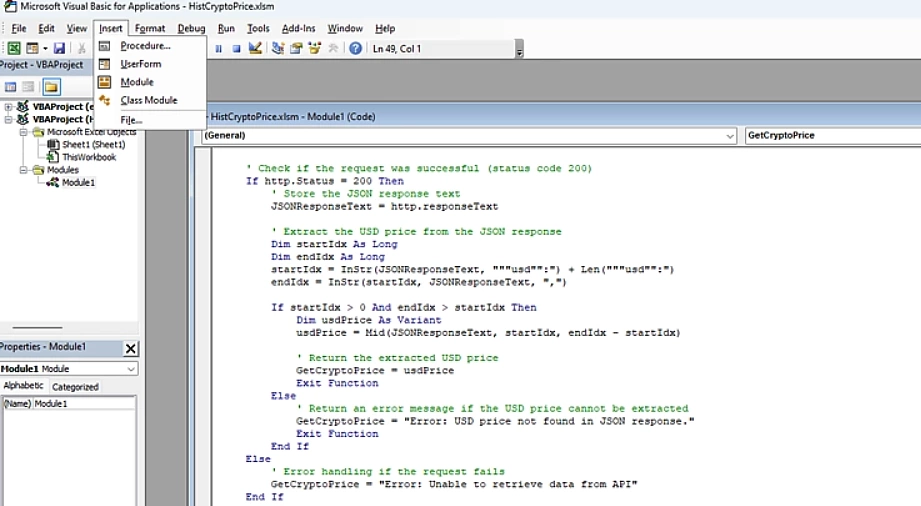
Our code consists of the following components:
Function GetCryptoPrice(cryptocurrency As String, dateInput As Date) As Variant
-
Function Declaration: We will name our function quite literally‘GetCryptoPrice’. It will take two inputs: the name of the cryptocurrency and the date for which you want to retrieve the price.
Dim http As Object

    Dim url As String

    Dim JSONResponseText As String

    Dim retryCount As Integer

    Dim maxRetries As Integer

Dim waitTime As Integer-
Variable Declaration: We use
dimto declare our variables as strings and integers before storing the HTTP request, URL, JSON response text, retry count, maximum number of retries, and wait time between retries. We include retries to “refresh” our data, as the number of calls allowed will vary depending on your CoinGecko API plan.
        ' Set the maximum number of retries and the wait time between retries

    maxRetries = 5

    waitTime = 20

    ' Initialize the retry count


retryCount = 0-
Setting Retry Parameters: We will set the maximum number of retries (5) and the wait time between retries (20 seconds). We will also initialize the retry count to 0.
' Loop until the function succeeds or the maximum number of retries is reached

Do While retryCount < maxRetries-
Retrying the Request: To retry our request the function enters a loop where it tries to retrieve the cryptocurrency price until it succeeds or reaches the maximum number of retries.
       ' Define the URL with the input cryptocurrency and date

        url = "https://api.coingecko.com/api/v3/coins/" & cryptocurrency & "/history?date=" & Format(dateInput, "dd-mm-yyyy")


        ' Create an HTTP request object

        Set http = CreateObject("MSXML2.ServerXMLHTTP")


        ' Add the API key to the request headers

        http.setRequestHeader "x-cg-demo-api-key", "CG-XXXXXXXXXXXXXXXXXXXXXXXX"


' Open the request with the specified URL

        http.Open "GET", url, False


        ' Send the request

        http.send
💡If you are a paid API user and have a pro API key, do remember to change the URL to https://pro-api.coingecko.com/api/v3/, and use "x-cg-pro-api-key" for the request header.
-
Building the Request URL: This constructs the URL for the API request based on the cryptocurrency name and date inputs, before creating the HTTP Request Object to make an HTTP request. This also sends the HTTP request to the API. ‘MSXML2.ServerXMLHTTP’ is an object provided by Microsoft XML Core Services, which allows you to send HTTP requests from within your VBA code. Additionally, GET is used in this instance, as it is a GET request to retrieve data from a server. Our previously defined ‘url’ specifies the resource that the client is requesting from the server (the historical price endpoint). The ‘False’ parameter indicates whether the request should be synchronous (false) or asynchronous (true). Setting it to false allows for our code execution to be one line at a time, making the code wait until the request is complete before moving on to the next line.
        ' Check if the request was successful (status code 200)

        If http.Status = 200 Then

            ' Store the JSON response text

            JSONResponseText = http.responseText


            ' Extract the USD price from the JSON response

            Dim startIdx As Long

            Dim endIdx As Long

            startIdx = InStr(JSONResponseText, """usd"":") + Len("""usd"":")

            endIdx = InStr(startIdx, JSONResponseText, ",")


            If startIdx > 0 And endIdx > startIdx Then

                Dim usdPrice As Variant

                usdPrice = Mid(JSONResponseText, startIdx, endIdx - startIdx)


                ' Return the extracted USD price

                GetCryptoPrice = usdPrice

Exit Function-
Extracting the USD price from the JSON response: If the request is successful (status code 200), it extracts the USD price from the JSON response and returns it through these steps:
-
JSONResponseText = http.responseText:This line assigns the response text from the HTTP request to the variable JSONResponseText. http.responseText contains the entire response received from the server in the form of a string, which, in our case, includes the price of our chosen cryptocurrency in relation to a number of fiat currencies: CAD, GBP, USD, etc. For our purposes, we only desire the price in relation to one currency: USD. -
startIdx = InStr(JSONResponseText, """usd"":") + Len("""usd"":"):Here, InStr function is used to find the position of the first occurrence of the substring """usd"":" within the JSONResponseText string. The Len("""usd"":") part calculates the length of the substring """usd"":". This length is added to the position of the substring found by InStr to find the starting index of the USD price value within the JSON response. -
endIdx = InStr(startIdx, JSONResponseText, ","):This line finds the position of the comma (,) character starting from the startIdx. It helps to locate the end of the USD price value within the JSON response. - The If statement checks whether both
startIdxandendIdxare valid indices within the JSON response, ensuring that they're greater than 0 and that endIdx is greater than startIdx. - If both indices are valid, it means that a valid USD price exists in the JSON response. It then extracts the substring representing the USD price from the JSONResponseText using the Mid function. The Mid function extracts a portion of a string starting from a specified position (startIdx) and ending at a specified position (endIdx - startIdx). This extracted substring represents the USD price.
Else

                ' Return an error message if the USD price cannot be extracted

                GetCryptoPrice = "Error: USD price not found in JSON response."

                Exit Function

                End If

        Else

            ' Error handling if the request fails

            GetCryptoPrice = "Error: Unable to retrieve data from API"


            ' Increment the retry count

            retryCount = retryCount + 1


            ' Wait for the specified time before retrying

            Application.Wait (Now + TimeValue("0:00:" & waitTime))

        End If


        ' Clean up objects

        Set http = Nothing

    Loop


    ' Return an error message if the maximum number of retries is reached

    GetCryptoPrice = "Error: Maximum number of retries reached."

End Function-
If not, the code handles the error by incrementing the retry count and waiting for a specified time before retrying.
Now that we have our function created, let's give it a try! Simply save the module using the ‘Save’ button in the Visual Basic Editor and go to a sheet in excel. For example, you can type ‘ethereum’ in cell A15, ‘30-06-2021’ in cell B15 (ensure date is of the form dd-mm-yyyy to avoid issues with the API request), and type ‘=Module1.GetCryptoPrice(A15,B15)’ into cell C15 to retrieve the price of ethereum on that day!
Step 2: Getting our Transaction History & Template
The complexity of accessing your transaction history varies depending on your chosen wallet. Assuming we use Metamask, open your wallet, select your chosen network (e.g. Ethereum mainnet), and hit the three dots in the top right, and select ‘View on Explorer’. In this instance, this will take you to Etherscan where you can download a CSV of your transaction history in the bottom right, underneath your transactions.
Now we will use the dates of our transactions, Value_IN(ETH), Value_OUT(ETH), potentially contract addresses and methods, and TxnFee (USD). We will build a tax calculator over the period of January 1st, 2021 to December 31st, 2021 in this example. Now, if we return to our excel sheet we can set up our table like so:
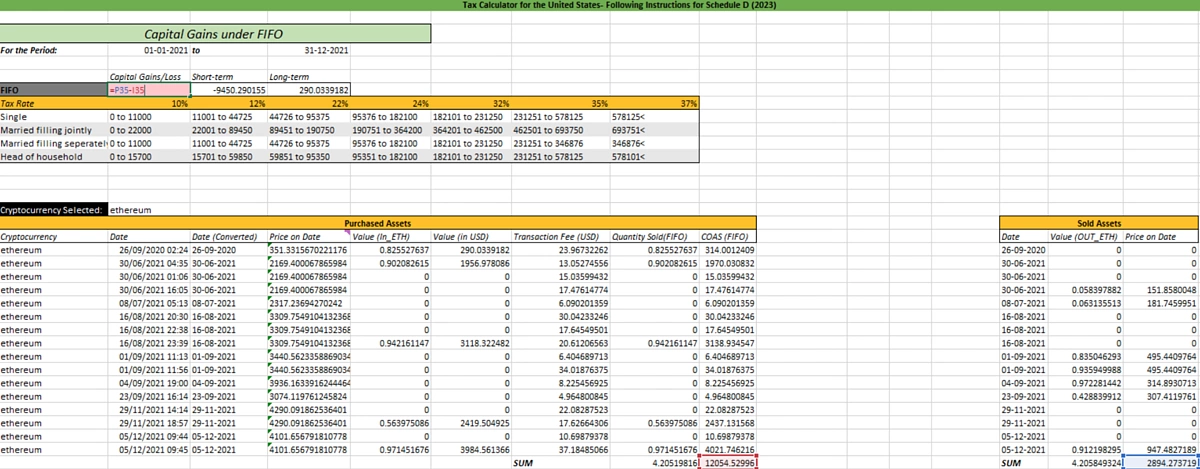
As shown above, we will take the date of our transactions from our csv Etherscan file and place it into column C, alongside the Value_IN under purchased assets, and the Value_OUT, in sold assets. We will convert our date stamps into the form “dd-mm-yyy”, so it is an appropriate input for our function, by using:
-
=TEXT(B19,"dd-mm-yyyy")
Next we can use our function to draw price data as we have done before, simply type:
-
=Module1.GetCryptoPrice (ensure “ethereum” or the properly typed coin id is next to it)
We can multiply our Value_IN column by these prices to determine what our Value_IN in USD was (Column F above). We then include our transaction fees in the column next to that.
Repeat the same process for sold assets, but multiply Value_OUT by Price on Date to find the Price on Date for that column in USD.
Step 3: Determine Capital Gains with FIFO Accounting Method
We will use the “FIFO” accounting method to determine our capital gains. To do this we will make two columns to the right of our Transaction Fee column: Quantity Sold and Cost of Assets Sold (COAS is an arbitrary name). Assuming we sell the crypto we purchased first, our FIRST cell of our quantity sold is calculated by using the formula:
-
= min(amount in corresponding Value_IN column, sum of Value_OUT column in sold assets)
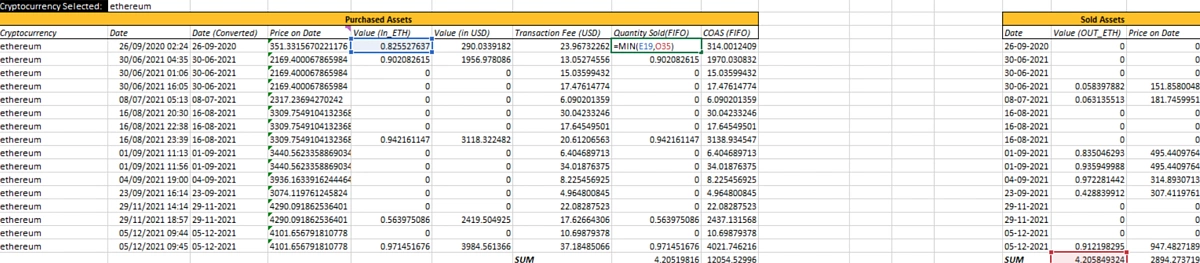
The following cells in this column will minimize either the corresponding Value_IN, or the sum of the sold assets subtracted by a running total of previously sold Ethereum:
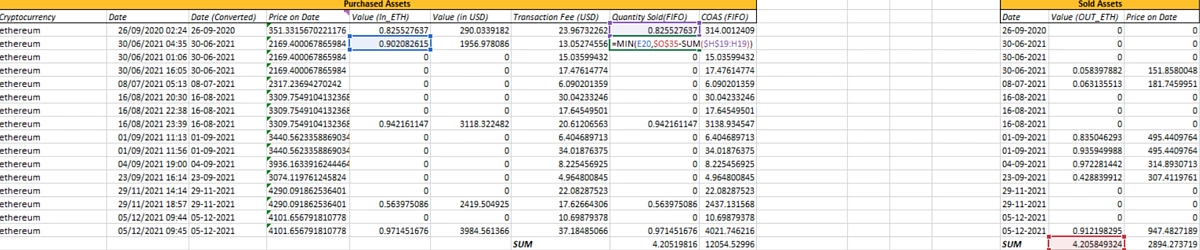
At the bottom, you can notice our Quantity Sold is equivalent to the Sum of our Value_OUT. This helps us calculate our cost basis (COAS): multiply the quantity sold by the price on that day and add the transaction fee:
-
=(H19*D19)+G19
Consolidating this column gives us our cost basis and allows us to calculate our capital gains/losses:
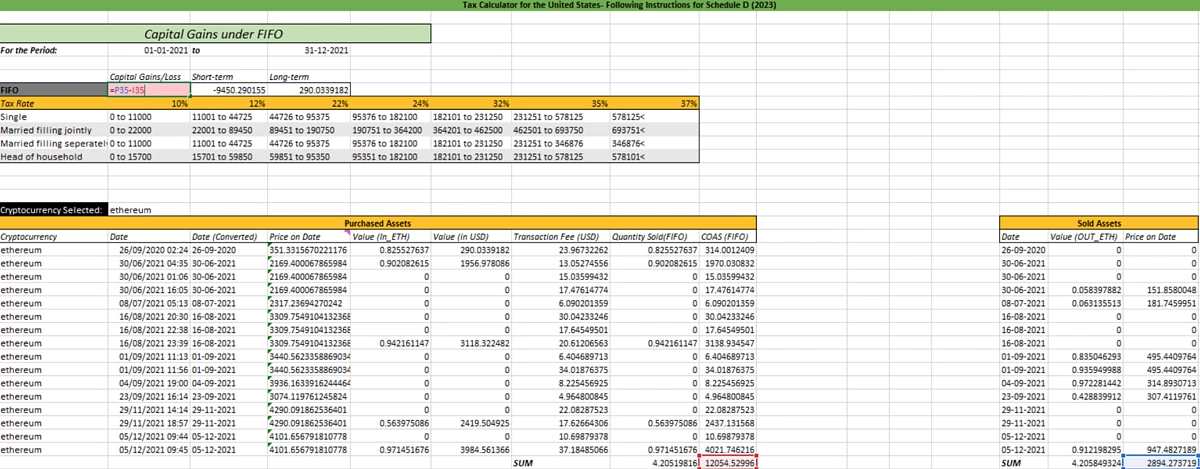
However, we still need to determine if any assets have been held for longer than a year, and, subsequently, if we are entitled to a long-term capital gains tax. To do this we can use the following formula to find any dates that precede our chosen time horizon (in this case January 1st, 2021 to December 31st, 2021):
-
=IF(SUM((B19:B34<B4)*(F19:F34)), SUMIFS(F19:F34, B19:B34, "<=" & B4, A19:A34, "ethereum"), 0)
This isolates any dates before January 1st 2021, highlighting any long-term assets. Following the summation of the Value (In USD) on these older dates, our result is included in the long-term capital gains cell. Our short-term capital gains is thus the difference between our total and long-term.
You can determine which tax bracket you fall into in the table included below that.
The Calculation Logic
Whether you fetch historical prices using the CoinGecko Excel add-in or VBA, the spreadsheet calculates your capital gains or losses using the same core formula:
Proceeds − Adjusted Cost Basis = Capital Gain/Loss
Here’s how the template applies this logic using the FIFO method:
-
Trigger Criteria: When you log a
SELLtransaction, the formulas search for the correspondingBUYtransaction to determine the cost basis. -
Apply the FIFO Rule: Following the First-In, First-Out (FIFO) method, the template identifies the earliest
BUYtransaction with an unspent quantity. This is the lot being sold. -
Determine the Adjusted Cost Basis: For that lot, the Adjusted Cost Basis is calculated by adding the original purchase price and any associated transaction fees: Purchase Price + Fees.
-
Calculate the Gain or Loss: The template subtracts the Adjusted Cost Basis from the Sale Proceeds, calculated as the sale price minus any sale fees. The result is the realized capital gain or loss for that trade.
-
Determine the Holding Period: Finally, the template calculates the time between the purchase and sale dates for that lot. If the holding period is more than 365 days, the gain or loss is categorized as Long-Term. If it is 365 days or less, it is categorized as Short-Term.
Common Issues & Fixes
If you encounter errors or missing data while using the tax calculator, here are some common issues and how to resolve them.
-
API Rate Limit Errors
If you reach your CoinGecko API usage limit, some requests may not return data. Wait for your usage limit to reset, or consider a paid API plan if you need higher rate limits and API credits. -
Missing or Incorrect Coin Data
If a coin's data does not appear after refreshing:-
Check that the Coin ID or Contract Address in the Add Coins sheet is correct.
-
Make sure the Source and Network ID fields are filled in correctly.
-
Click “Refresh All Data” in the CoinGecko task pane after making the changes.
-
-
API Key or Authentication Issues
If your data is not loading or you see errors such as 401 or 403, check that your CoinGecko API key is entered correctly in the add-in. You can also reconnect your API key by following the CoinGecko Excel setup guide. -
Data Not Updating or Showing Older Prices
Excel may temporarily cache formula results. If you need to refresh the data, open the CoinGecko task pane and click “Refresh All Data.” -
Formula Showing
#NAME?
This usually means the CoinGecko Excel add-in is not installed or is not currently loaded. Go to Insert > Get Add-ins, search for “CoinGecko,” and make sure the add-in is installed and active. The=CG.namespace is available only when the add-in is running. -
Values Showing as
###
This usually means the column is too narrow to display the value. Widen the column to view the full value.
For more detailed troubleshooting steps, refer to the CoinGecko Excel troubleshooting guide.

Further Enhancements
You can further customize the Crypto Tax Calculator spreadsheet to suit your needs. Here are a few ways to extend the template using other CoinGecko API data:
-
Add OHLC Data
For more detailed price analysis, you can add Open, High, Low, and Close (OHLC) data for each asset. See our step-by-step guide on how to pull crypto OHLC data into Excel. -
Add a Crypto Portfolio Tracker
Extend the spreadsheet into a Crypto Portfolio Tracker to monitor unrealized P&L alongside your realized capital gains. See our guide on how to create a crypto portfolio tracker in Excel. -
Create a Crypto Exit Strategy Planner
You can also extend the spreadsheet with an Exit Strategy Planner to plan potential sell targets and compare different exit scenarios. See our step-by-step guide on how to build a crypto exit strategy planner in Excel.
Conclusion
This Crypto Tax Calculator Excel template uses the CoinGecko API to fetch historical crypto price data and calculate capital gains or losses. Using the FIFO method, the template matches transactions and tracks cost basis, giving you a clear view of your tax-related crypto activity.
If you need higher rate limits, more API credits, or access to additional endpoints, explore our paid API plans. For more free, downloadable templates, check out our crypto portfolio tracker template on Google Sheets.
Download the Free Crypto Tax Calculator Excel Template
Instead of building your own crypto tax calculator in Excel, simply enter your email below to download our free crypto tax calculator template – so you can start calculating your taxes today!







 Or check it out in the app stores


